
Choosing a TFT LCD Touch display is not simply a matter of selecting the brightest screen or the lowest quotation. The right module must perform reliably inside a real product, under real conditions. A control panel near a factory window faces glare, dust, vibration, and repeated finger presses. A handheld device may need glove operation, wide viewing angles, and low power consumption.
Display analyst Bob Raikes puts the design priority clearly: “The display is the most important part of any product that has one.” His observation applies directly to TFT LCD Touch selection. Image quality affects readability, while touch accuracy affects user confidence. Both must work together.
This guide examines the practical factors behind a dependable choice. It considers screen size, resolution, brightness, contrast, viewing direction, touch technology, cover glass, controller compatibility, and operating temperature. It also explains why projected capacitive touch is not always the best answer. Resistive touch can remain useful in industrial settings, especially when users wear gloves or operate equipment with a stylus.
Small details matter. A glossy surface may look impressive indoors but reflect harsh sunlight outdoors. A thin bezel may improve appearance yet leave less space for mounting hardware. Engineers should test the complete assembly, not only a sample panel.
No checklist is perfect. Supplier promises also require verification. Ask for test reports, interface drawings, lifetime data, and sample units. Then test them in the environment where the TFT LCD Touch display will actually work.
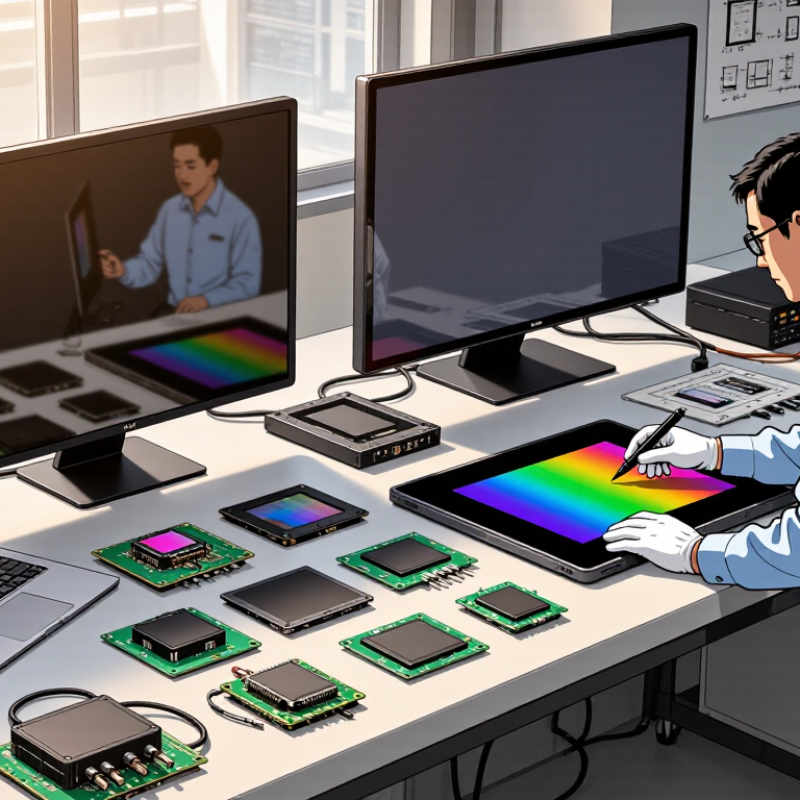
Choosing a TFT LCD touch display starts with its intended use, not its screen size. A control panel in a quiet office needs different features than a handheld device used outdoors. Define who will touch the display, how often, and with which input method.
Bare fingers, work gloves, and a stylus can produce different results. Keep the workflow visible. A small display may save space, yet it can slow operators during repeated tasks.
The operating environment deserves equal attention. Check ambient temperature, humidity, dust, vibration, and direct sunlight before selecting a panel. A bright screen is not always better. Excessive brightness can cause glare indoors and increase power consumption.
Optical bonding may improve readability in sunlight, while a wider viewing angle helps shared equipment. If users wear gloves, test touch sensitivity with the actual glove material. Do not rely only on a laboratory demonstration. Real conditions often expose small failures.
Tips:
Write a simple environment profile before comparing specifications. Record temperature ranges, expected moisture, cleaning methods, and mounting direction. Ask for samples and run them during normal operation.
Test wet fingers, surface reflections, and repeated touches. Leave room for mistakes. Early assumptions are often incomplete. A display that works perfectly on a desk may respond poorly inside a vibrating machine or behind a protective cover.
How to Choose a TFT LCD Touch Display?
Choosing a TFT LCD touch display starts with the screen’s physical environment. Measure the available panel space, then estimate the user’s viewing distance. A compact 3.5-inch display suits handheld equipment. A 7-inch panel gives operators more room for charts and touch buttons. Larger screens improve readability, but they also increase power use and installation demands. I once selected a screen that fit the enclosure perfectly, yet felt cramped during testing. Dimensions alone can mislead.
Resolution should match the information shown. Simple status screens may work well at 480 × 272 pixels. Detailed maps, tables, or camera images need higher pixel density. Avoid choosing the highest resolution automatically. Small text can become difficult to read, and the processor may need more power. Test the actual interface at its intended distance. Use physical buttons and realistic lighting during evaluation. A specification sheet cannot reveal every usability problem.
Viewing angle matters when users stand beside the equipment or view it from above. A wide-angle panel keeps colors and contrast more stable across different positions. Check both horizontal and vertical performance, especially for portrait-mounted displays. Brightness and surface treatment also affect visibility near windows. Touch accuracy deserves equal attention. Thick protective glass may reduce glare, but it can change touch sensitivity. Test with bare fingers, gloves, and slightly damp hands where relevant. The best choice is not always the sharpest screen. It is the one that remains readable, responsive, and comfortable in real conditions.
Select the appropriate screen size, resolution, and viewing angle for your application. The chart compares representative TFT LCD touch-display configurations commonly used in embedded devices.
Larger displays improve readability, while higher resolutions provide sharper images and more workspace. A wider viewing angle is important when users will view the screen from different positions. The listed viewing angles represent the total horizontal viewing angle.
Choosing a TFT LCD touch display starts with the user’s real environment, not the product brochure.
Projected capacitive touch feels smooth and supports gestures, making it suitable for menus, maps, and handheld controls. It usually responds best to bare fingers or compatible gloves. Wet surfaces can reduce accuracy. That detail is easy to overlook.
Resistive touch detects pressure from a finger, stylus, or gloved hand. It works well for equipment panels where users enter precise values or wear thick protective gloves. However, it offers less natural gesture control and may feel slower.
Infrared touch can support larger screens and multiple users, but dust, sunlight, or accidental contact may affect performance.
I have found that a simple glove-and-water test often reveals more than a specification sheet.
Match the technology to interaction requirements.
A public kiosk needs clear targets, strong cover glass, and reliable operation during repeated tapping.
A factory display may need pressure detection, easy cleaning, and stable performance near vibration.
A medical interface requires careful validation, readable graphics, and minimal false touches.
Test the display with the intended software, not only a static demo. A design can look excellent yet frustrate users with small buttons. I once underestimated sleeve contact during testing; that mistake changed the required touch settings.
Feedback matters. Measure response time, touch accuracy, viewing angle, and failure behavior before approving the final display.
Brightness should match the real installation, not the showroom. Indoor equipment often works well around 400 to 600 nits. Outdoor sunlight may require 800 nits or more. Check whether the display uses optical bonding, which can reduce reflections and improve touch visibility. I once tested a bright panel behind a clear cover and found unexpected glare. The enclosure changed everything.
Durability includes more than a strong glass surface. Check the cover lens thickness, edge sealing, operating temperature, and resistance to repeated touches. If operators wear gloves, test the exact glove material. Moisture can also reduce touch accuracy. An IP-rated front may help, but the rating applies only under specific test conditions. Do not assume it protects the complete device. Small details matter.
Interface compatibility can prevent costly redesigns. Confirm the display connector, voltage level, resolution, touch protocol, and required driver support. SPI may simplify wiring, while RGB or MIPI can support faster image updates. Measure power during startup, normal brightness, touch activity, and sleep mode. A panel rated at 300 mA may draw more with the backlight fully enabled. I still leave a safety margin, although that margin sometimes feels excessive. Field testing remains essential. A prototype should run for days inside the intended enclosure, under realistic temperature and lighting conditions.
How to Choose a TFT LCD Touch Display?
Compatibility should be verified before comparing brightness or color performance. Check the host processor, interface, resolution, active area, mounting holes, and operating temperature. A display may show an image but still fail touch communication. Confirm whether the controller supports USB, I2C, SPI, or another required interface. Also check connector position and cable length. Small mechanical differences can stop a correct-looking design.
Customization matters when the screen sits behind glass, gloves, or protective equipment. Projected capacitive touch usually supports multi-touch, but sensitivity changes with cover thickness and moisture. MarketsandMarkets estimates the global touch screen controller market will grow at roughly 11% annually through 2028. That growth reflects wider embedded use, not guaranteed performance for every application. In practice, sample testing remains essential. I have seen a display pass laboratory checks, then struggle under bright sunlight and wet fingers. That gap deserves attention.
Tips: Request samples with the final cover lens, cable, and enclosure. Test brightness, touch accuracy, response time, and temperature cycling together. Ask for a documented product-change policy, repair process, and minimum support period. A supplier’s long-term support should include firmware access, replacement planning, and clear end-of-life notices. The IPC-9592 reliability framework also encourages documented qualification and change control for electronic assemblies. It is not a display-specific rule, but it provides a useful discipline. Do not rely only on a promise. Get lifecycle details in writing.
Start with the operator’s workflow, not screen size. A compact panel may save space but slow repeated entry. Small details matter.
Record temperature, humidity, dust, vibration, sunlight, and mounting direction. A desk test may not predict performance inside a vibrating machine.
Test the actual glove material with the intended display. Bare fingers, thin gloves, and thick gloves may produce different results. Test it directly.
It feels smooth and supports gestures for menus, maps, and handheld controls. It usually works best with bare fingers or compatible gloves. Wet surfaces may reduce accuracy.
It detects pressure from fingers, styluses, and thick gloves. This suits precise equipment inputs. Gesture control may feel less natural.
Larger screens and multiple users may suit this technology. Dust, sunlight, and accidental contact can cause unwanted responses. Conditions matter greatly.
Higher brightness is not always better. It can create indoor glare and increase power use. Optical bonding may improve sunlight readability.
Use the intended software and repeat normal tasks. Check response time, accuracy, viewing angle, reflections, wet fingers, and repeated touches. Static demos are incomplete.
Use clear, generous touch targets for repeated tapping. Small buttons can frustrate users, even when the display looks excellent. I once underestimated sleeve contact.
Choosing the right Tft Lcd Touch display begins with clearly defining its intended application and operating environment. Consider whether it will be used in a handheld device, industrial system, vehicle, control panel, or public setting, as factors such as temperature, moisture, dust, vibration, and user accessibility can strongly influence the design. Screen size, resolution, and viewing angle should match the available space and the way users will read or interact with the display.
It is also important to compare touch technologies according to the required accuracy, responsiveness, gesture support, and usage conditions. Evaluate brightness, contrast, surface durability, scratch resistance, interface options, and power consumption to ensure reliable performance. Before making a final decision, verify compatibility with the system’s hardware and software, review available customization choices such as connectors or cover glass, and confirm that technical support, replacement availability, and product continuity will meet long-term project needs.